
Drawquarium Aquarium Decoration: Water, Sand and Light
Build a better Drawquarium tank with water level and speed, sand grain, driftwood, rocks, plants, backgrounds, lighting, and disco mode.
A Drawquarium tank is a composition before it is a collection. The same fish can look dull in a cluttered tank and striking in a clean one, and the difference is usually water, substrate, and one strong piece of wood. This guide walks through the decoration controls visible in the official screenshots and gives a composition workflow that works for both the in-game camera and wallpaper mode.
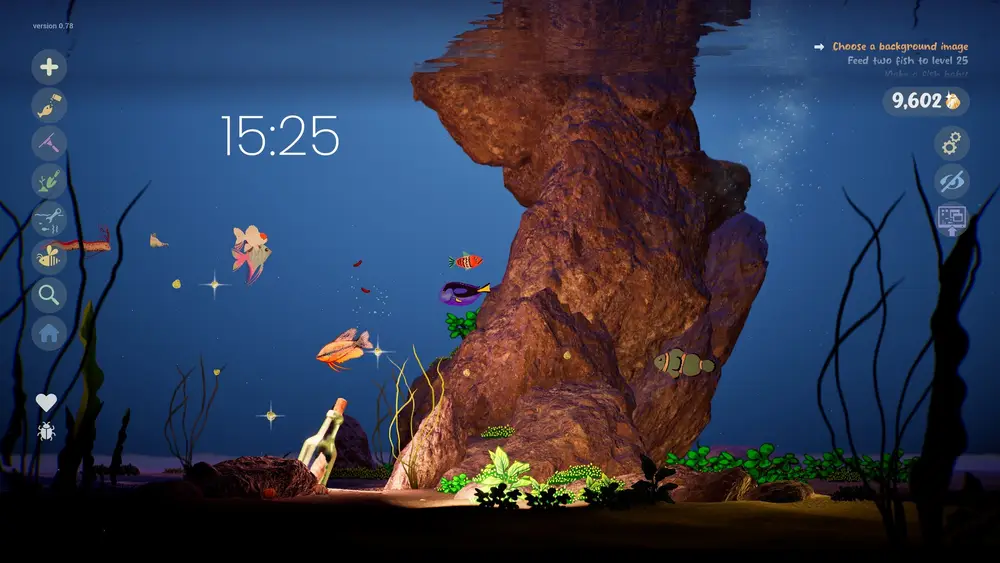
If the tank is going behind your desktop, the wallpaper mode guide→ covers composition and performance.
The three layers of a tank
Think of decoration in layers, back to front:
- Background. A painted image or a plain water color. It sets the mood and the depth.
- Structure. Driftwood and rocks. They create lanes, hiding places, and a focal point.
- Surface. Sand, plants, and small decor. They soften the floor and frame the fish.
Change one layer at a time. If you change all three at once, you will not know which change ruined the look.
Water
The water panel exposes level, speed, and strength, plus a palette. Those controls do three different jobs:
Level sets how full the tank looks. A high level gives fish more vertical space; a low level exposes more rock and sand.
Speed controls how fast the water moves. Slow water suits jellyfish and calm wallpaper scenes. Fast water suits sailfish and a more energetic tank.
Strength controls how strongly the motion affects plants and particles. High strength makes plants sway dramatically; low strength keeps the scene still.
Use one palette for the water and a neighboring shade for the background. A tank with a teal water body and a purple background looks like two scenes stacked; a tank with related blues looks deep.
Sand
The sand panel exposes smoothness, contrast, and grain size, plus a palette. This is the most underrated control in the game, because the substrate fills the bottom third of every screenshot.
Grain size sets whether the floor looks like fine sand or gravel. Fine sand suits a calm tank; gravel suits a reef or a rocky scene.
Contrast controls how visible the individual grains are. High contrast is busy; low contrast is clean.
Smoothness controls the dune shapes. Smooth sand gives long, calm curves; rough sand gives texture and shadow.
Pick a sand color one step lighter than the water. Pure white blows out under the tank lights; dark sand swallows the fish shadows.
Driftwood and rocks
The screenshots show driftwood variants numbered 1–9 and rock variants numbered 1–14, with a tooltip naming the current piece. Those numbers are presets, not a progression system, so you can use any of them as soon as the panel is available.
A good structure uses one large piece and one small counterweight:
- Large driftwood on one side, angled toward the center.
- A rock cluster on the opposite side, lower and wider.
- Open sand between them, so fish have a lane.
Avoid symmetry in hardscape. Two equal rock piles on both sides look like a stage set.
Plants
Plants are drawn as well as placed. The store page sells "decorate with your own plants", and the September update mentions bioluminescent plants. Draw plants with the same rules as fish: strong silhouette, thick stems, one accent color.
Plant in groups. A single stem alone in the sand looks like a mistake; three stems of different heights look like a planting.
Keep the center of the tank clear. Plants belong at the back and the edges, where they frame the fish without blocking them.
Backgrounds
The store page and screenshots show painted backgrounds, including an underwater city, with a horizontal guide line for placement. A background image does most of the mood work, so choose it before you tune the water.
If you draw your own background, keep the contrast low. A busy background competes with the fish and makes the tank hard to read in wallpaper mode.
Light and caustics
The September update says lighting and caustics are adjustable. Caustics are the moving light patterns on the sand and fish. They are the main reason a static drawing feels underwater.
Use caustics at a moderate strength for a natural look, and turn them down for a dark, bioluminescent tank. In disco mode, the lighting changes entirely, with lasers and spotlights.
Disco mode
Disco mode adds lasers, spotlights, and a techno soundtrack. It is a presentation mode, not a progression system. Use it for a screenshot or a party wallpaper, then switch back to a normal light setting.
Glowing fish and plants look best in disco mode, because the scene is dark enough for the glow to read.
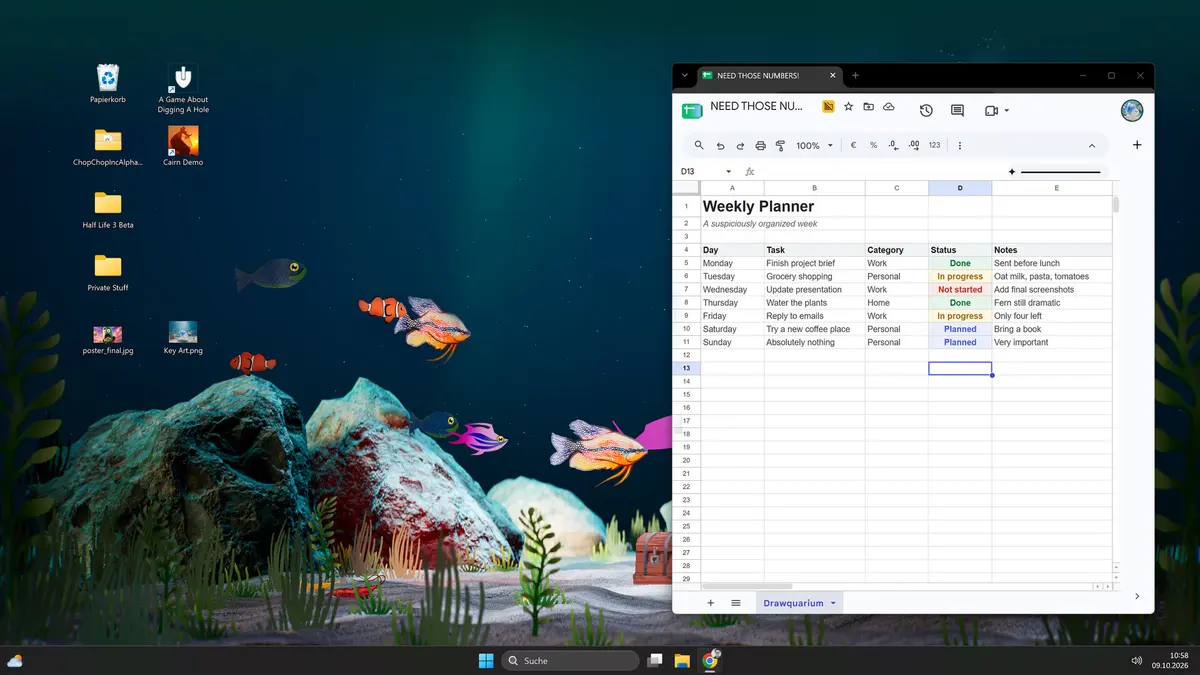
Compose the tank in wallpaper mode, not in the editor. The wallpaper crops the scene to your monitor, and a layout that looks balanced in a window can lose its focal point on a wide screen.
Official source: Drawquarium store page ↗ and the September update ↗, rokaplay ↗ and the Drawquarium Discord ↗
A composition checklist
Before you call a tank finished, check:
- Is there one clear focal point?
- Can a fish swim from one side to the other without crossing a rock?
- Does the background contrast with the fish, not compete with them?
- Is the sand visible enough to ground the scene?
- Does the tank still look good with the HUD hidden?
If the answer to any of those is no, change one layer and look again.
FAQ
Can I move decor between tanks?
The game supports moving fish between tanks. Whether hardscape is shared or per-tank is not documented, so assume per-tank until you test it.
Do decorations affect fish behavior?
The store page says fish react to their environment, and the September update mentions reactions to new fish and changes. Hiding places and open water likely matter, but no specific decor bonus is published.
Is disco mode permanent?
It is a mode, not a one-way upgrade. The screenshots show it as a lighting state in wallpaper mode, so you can switch in and out.
How many decorations can one tank hold?
No cap is published. The practical limit is visual clutter and how much the scene can show before the fish disappear.
More Drawquarium Guides
A Drawquarium fish list built from official screenshots and patch notes: body templates, bottom feeders, jellyfish, sharks, and golden fish.
Use Drawquarium as a focus companion: the clock, timer, journal, checklist, and wallpaper mode, plus a simple work session setup.
How the Drawquarium food editor works, which shapes to draw, how portion size affects leftovers, and why bottom feeders still need the vacuum.
A practical Drawquarium guide for the first hour: draw a fish that reads well, feed it, finish early goals, and unlock your first upgrades.
Where Drawquarium runs: Windows PC requirements, Mac and Linux answers, Steam Deck compatibility, mobile, and console availability.
Drawquarium's price has not been announced. What is confirmed, how regional pricing works, whether it is free, and how to avoid overpaying.
Drawquarium launches on November 13, 2026 for Windows on Steam. What is confirmed about the release, the trailer, wishlists, and launch day.
How the Drawquarium template grid works: fish, eyes, fins, and food categories, Golden Scale unlocks, custom templates, and saved palettes.