
Drawquarium Focus Timer and Journal Setup
Use Drawquarium as a focus companion: the clock, timer, journal, checklist, and wallpaper mode, plus a simple work session setup.
Drawquarium is marketed as a cozy space to focus and unwind, and the focus tools are not an afterthought. The tank screen includes a large clock, a goals list, and a journal with multiple entries. The store page lists a journal, task manager, timer, and clock. Used with wallpaper mode, the aquarium becomes a work companion that happens to be alive. This guide shows how to set it up without turning it into a distraction.
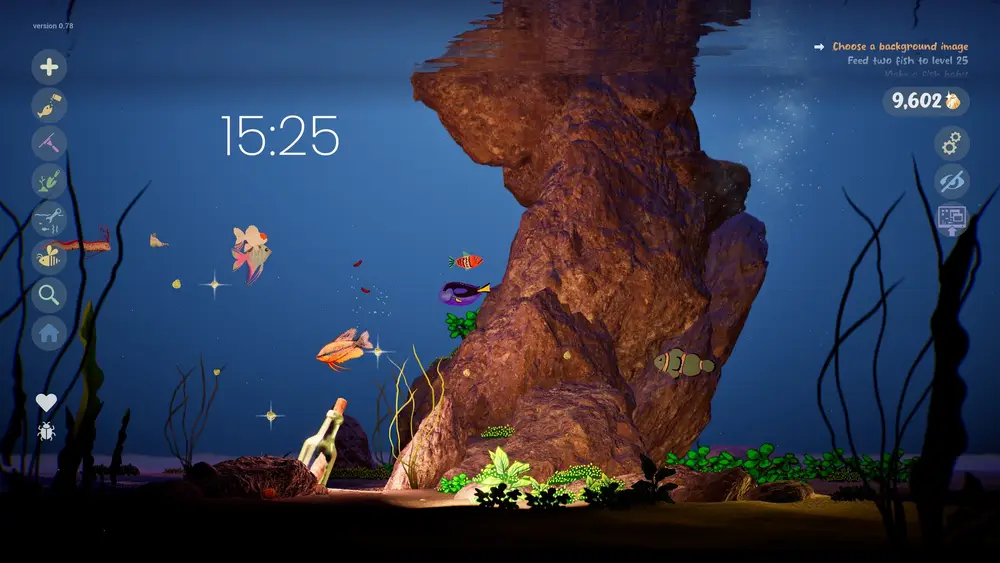
The clock only follows you into wallpaper mode→ if the overlay stays visible.
The tools you actually get
Clock. A large time display sits in the upper center of the tank screen. The screenshots show it in a 24-hour format with the date and weekday in the journal header.
Timer. The store page lists a timer, and press coverage of the demo describes a Pomodoro-style timer. The official screenshots do not show a running countdown, so treat the exact timer UI as something to find in the build rather than something to copy from a guide.
Journal. The journal opens as a book with a spine list on the left and a writing area on the right. The screenshot shows entries named My Journal, Food Diary, Birthday Gifts for Sebastian, My Annual Goals, and Notes. A prompt reads "What's making you feel this way?" and the date and time appear under the title.
Goals list. The tank's task list doubles as a work checklist if you use it that way. It is designed for game goals, but the structure is the same: a short list of things to finish.
Checklist. The store page lists a task manager, and the September update mentions productivity tools including a checklist. The exact screen is not shown in the gallery.
A simple focus session
- Set the tank up before you work. Feed the fish, vacuum, and pick a calm water speed. Maintenance first, then work.
- Open the journal and write one sentence about what you are doing. The screenshot prompt is a good model: name the feeling, then name the task.
- Start the timer. If the build has a Pomodoro-style timer, use a 25-minute work block followed by a 5-minute break. If it only has a countdown timer, pick a length you can finish.
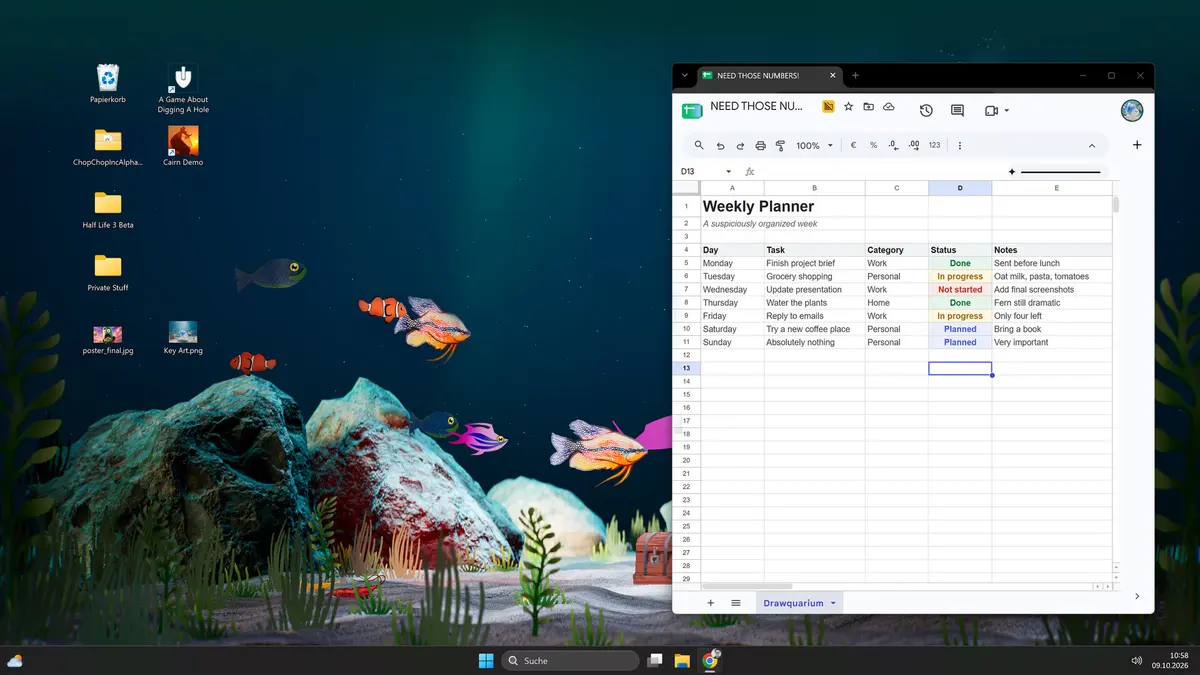
- Switch to wallpaper mode. The tank moves behind your windows, the HUD disappears, and the clock is still visible if you keep the overlay on.
- Return at the break. Check hunger rings, feed if needed, and vacuum before the next block.
The point is not to optimize minutes. It is to give the break a pleasant destination, so you actually take it.
Why wallpaper mode helps
A focus timer in a separate app is easy to ignore. A living tank behind your work is harder to ignore, and the break becomes a small visit rather than a scroll. The September update made wallpaper mode more stable and fixed audio switching, which makes it usable for long sessions.
The risk is the opposite: the tank becomes the distraction. If you find yourself watching fish instead of working, slow the water, reduce the particle effects, and keep the tank dark. A calm tank is background; a busy tank is television.
Journal habits that fit the game
The journal is a notebook, not a productivity system. Use it for three kinds of entries:
- A daily line. What you worked on and how it felt.
- A tank log. New fish, babies, unlocks, and anything you want to remember.
- A project list. The three things you want to finish this week.
The screenshot's "My Annual Goals" entry suggests the journal is meant for long-horizon notes too. A page called "Fish I Want to Draw" is a legitimate use.
Setup checklist
- Windows 10 64-bit or newer.
- A resolution you are comfortable working at.
- A tank with a dark background and moderate motion.
- Audio set to a low volume or muted.
- Wallpaper mode tested for an hour before a deadline day.
If wallpaper mode fails, fix that first. A focus setup that crashes is worse than no setup.
Put the clock where you can see it without moving windows. In wallpaper mode the tank is behind everything, so the clock is only useful if your workspace leaves a corner of the desktop visible.
Official source: Drawquarium store page ↗ and the September update ↗, rokaplay ↗ and the Drawquarium Discord ↗
Is this a Pomodoro app?
No. It is a game with a clock, a timer, a journal, and a checklist. The Pomodoro comparison comes from press coverage of the demo, not from a published feature spec. If you need strict interval enforcement, use a dedicated timer and keep the tank as the backdrop.
What about the fish while you work?
Fish do not need constant attention. Check them at the start of a session and at each break. If a fish is hungry, feed it; if the tank has debris, vacuum. A healthy tank can go a work block without intervention.
Do not leave a huge meal in the tank before a long session. The interface is hidden in wallpaper mode, and the mess accumulates while you work.
FAQ
Does Drawquarium have a Pomodoro timer?
Press coverage describes a Pomodoro-style timer in the demo. The store page lists a timer without naming the method. Check the timer screen in your build for the available intervals.
Can I use the journal outside the game?
The journal is an in-game feature. There is no export or cloud document service listed on the store page.
Does the clock sync with Windows time?
The clock shows the local time in the screenshots. Whether it follows the system clock exactly is not documented, but that is the normal behavior for a desktop game.
Will wallpaper mode drain my battery?
Yes. A live 3D scene renders continuously. Plug in for long sessions and lower the tank's visual load if the fans get loud.
More Drawquarium Guides
How levels, days old, medals, metallic shimmer, and golden fish work in Drawquarium, and what the level 25 goal actually asks for.
A Drawquarium fish list built from official screenshots and patch notes: body templates, bottom feeders, jellyfish, sharks, and golden fish.
How the Drawquarium food editor works, which shapes to draw, how portion size affects leftovers, and why bottom feeders still need the vacuum.
A practical Drawquarium guide for the first hour: draw a fish that reads well, feed it, finish early goals, and unlock your first upgrades.
Where Drawquarium runs: Windows PC requirements, Mac and Linux answers, Steam Deck compatibility, mobile, and console availability.
Drawquarium's price has not been announced. What is confirmed, how regional pricing works, whether it is free, and how to avoid overpaying.
Drawquarium launches on November 13, 2026 for Windows on Steam. What is confirmed about the release, the trailer, wishlists, and launch day.
How the Drawquarium template grid works: fish, eyes, fins, and food categories, Golden Scale unlocks, custom templates, and saved palettes.